
Mac volume keys not working on an external monitor? Here's why — and the fix
Plug in an HDMI or DisplayPort monitor and your volume keys show a crossed-out speaker. It is not a bug. Here is what is happening and four ways to get control back.
3 min read
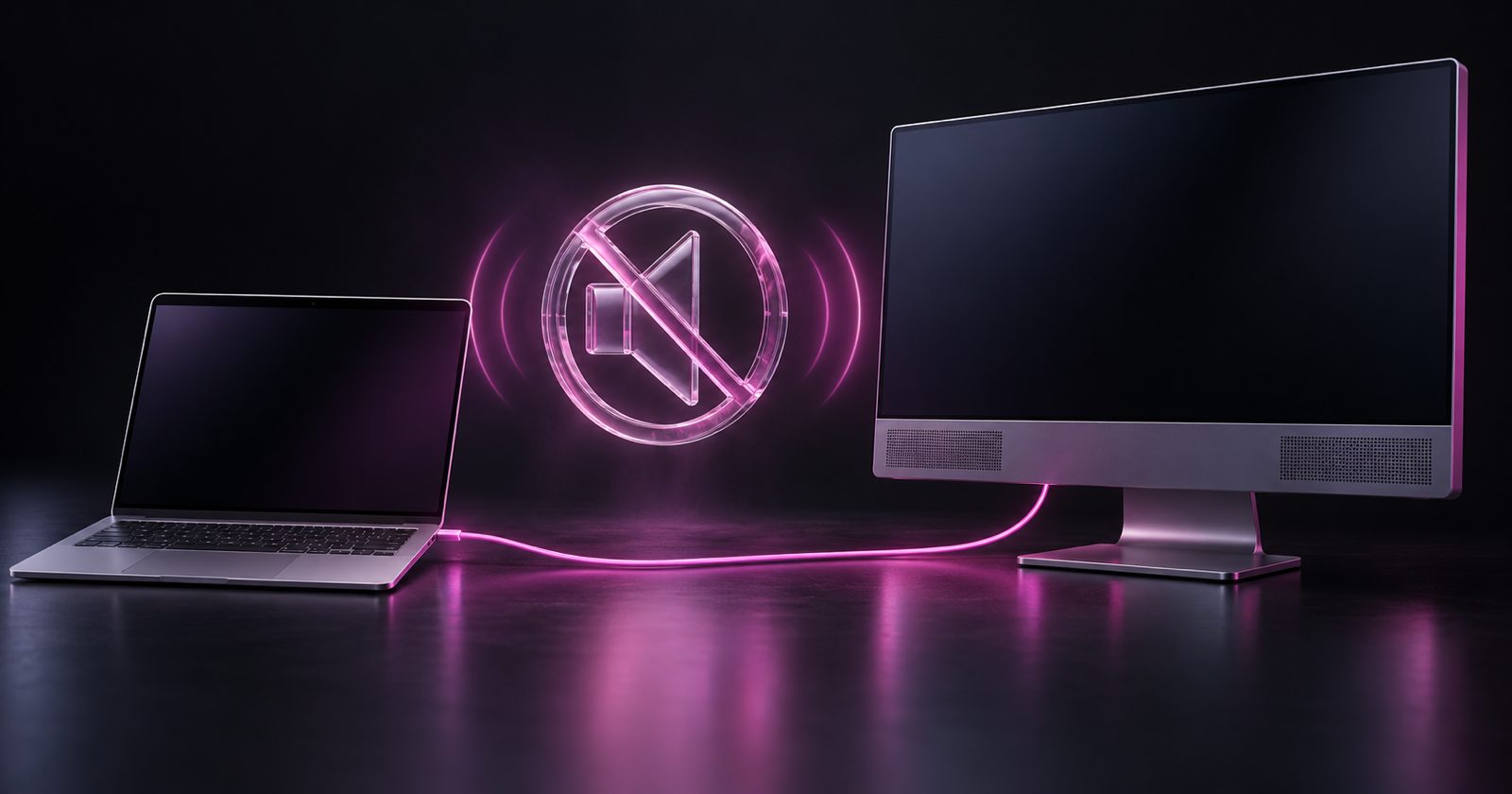
You connect your Mac to a monitor with built-in speakers, sound starts coming out of the screen — and the volume keys stop working. Press them and you get the speaker icon with a little "not allowed" symbol, and nothing changes.
It looks like a bug. It is actually macOS doing exactly what the hardware tells it to. Once you know why, the fixes are straightforward.
Why the volume keys stop working
When audio goes out over HDMI or DisplayPort (including USB-C and Thunderbolt adapters that carry DisplayPort), your Mac sends a digital audio stream to the monitor at a fixed level. Most monitors do not tell macOS that they accept volume commands over that connection, so macOS has no volume control to adjust. With nothing to control, it disables the slider and the keys.
The monitor expects you to set the volume on the monitor — with its buttons or on-screen menu. Which is fine, until the buttons are on the back of the screen and you just want to turn a video down.
Fix 1: use the monitor's own controls
The zero-install fix. Most monitors with speakers have a volume setting in their on-screen menu, and some have a dedicated button. Set it once to a comfortable level.
Best for: you rarely change volume. Downside: fiddly, and every change means reaching behind the screen.
Fix 2: control the monitor over DDC
Many monitors support DDC/CI, a standard that lets a computer adjust settings like brightness — and, on some models, volume — over the video cable. Free tools such as the open-source MonitorControl send those commands when you press the Mac's keys.
Best for: monitors that implement DDC volume. Downside: support varies by model and connection; some docks and adapters do not pass DDC through, and some monitors ignore volume commands entirely.
Fix 3: send sound somewhere else
If you do not need the monitor's speakers, switch the output back to your Mac's speakers, headphones or AirPods: click Sound in Control Center (or the menu bar) and choose a different output. The keys work again immediately, because those devices do expose a volume control.
Best for: monitor speakers you never wanted to use. Downside: they are now unused.
Fix 4: software volume on the Mac
The most reliable fix is to adjust the audio before it leaves the Mac. A software volume stage lowers or raises the level of the digital stream, so the volume keys have something to control again — and it works with every monitor, dock and adapter, because nothing depends on the monitor accepting commands.
This is one of the things NabuSound does: it makes the volume keys work on HDMI and DisplayPort monitors, from the standard keys and the menu bar, with the usual on-screen indicator. It also remembers device priority, so when you plug the monitor in or take your AirPods out, sound goes where you expect.
Tip: set the monitor's own volume fairly high once, then do all your day-to-day adjusting from the Mac. Turning the monitor down and the Mac down leaves you with little room at the top.
Bonus fix: sound stuck on the wrong device
If sound stops entirely after sleep or after unplugging a display, restarting the Core Audio service usually brings it back without a reboot. Open Terminal and run:
sudo killall coreaudiodmacOS restarts the service automatically within a second or two. Any app playing audio may need to be paused and resumed.
Which fix should you use?
| You want… | Use |
|---|---|
| No new software, rare changes | The monitor's buttons |
| Keys that change the monitor's own volume | DDC, if your monitor supports it |
| To stop using the monitor's speakers | Switch output in Control Center |
| Keys that work everywhere, every time | Software volume (NabuSound) |
While you are in there
Once audio is going through a mixer on your Mac, you can do far more than fix the keys: give Zoom and Spotify their own volume, boost a quiet video past 100%, or send one app to headphones and the rest to the speakers. We cover all of that in how to control the volume of each app on a Mac.