
How to control the volume of each app on a Mac
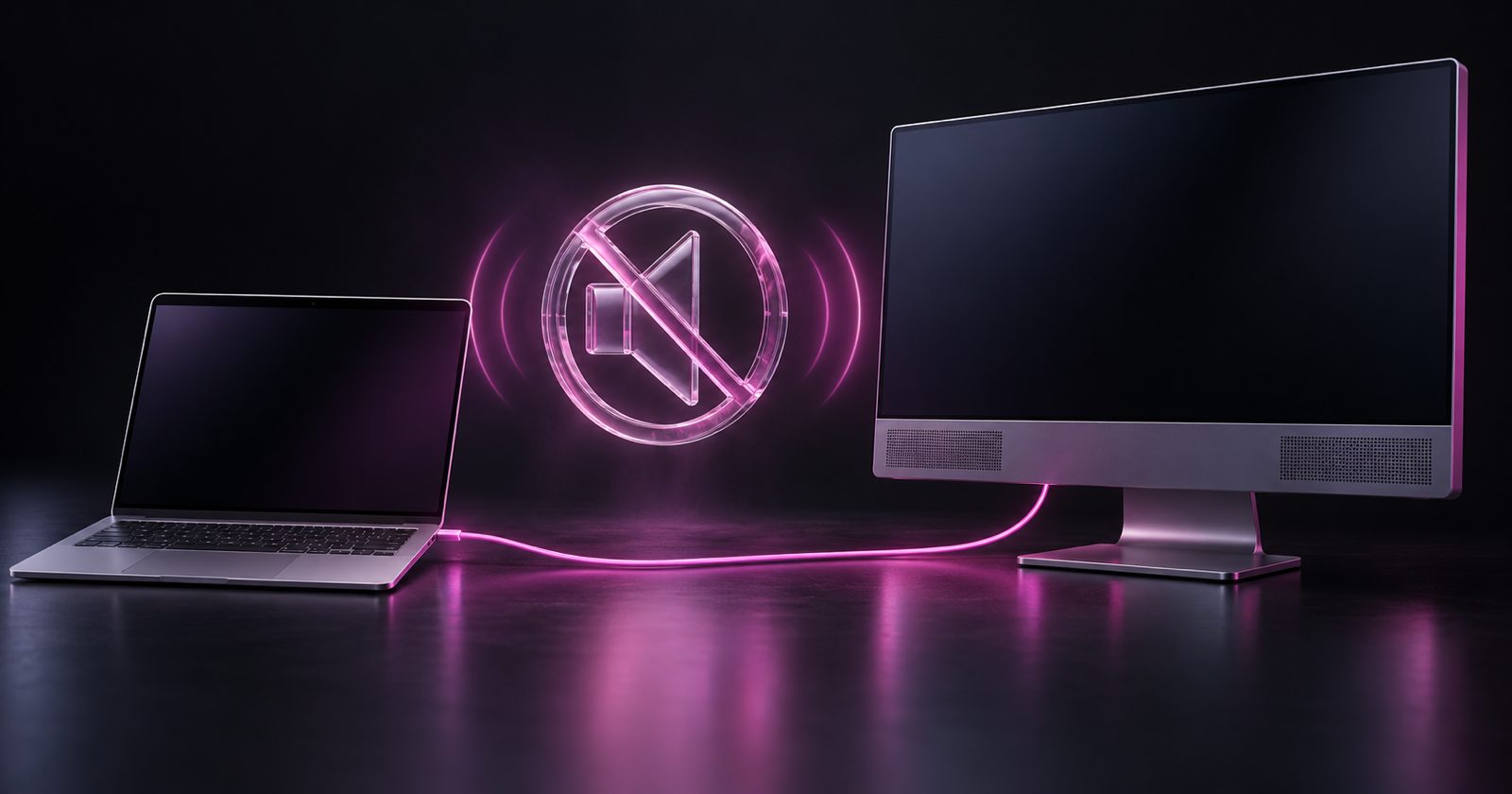
macOS gives you one volume slider for everything. Here is why, what you can do with the tools already on your Mac, and how to get a real per-app mixer.
4 min read
You are on a call. The other person is far too loud, your music is far too quiet, and a browser tab you forgot about just started playing an ad. You reach for the volume keys — and they move everything at once.
Windows has had a per-app volume mixer for close to twenty years. macOS still has one slider. This guide covers why, what you can do about it with what is already on your Mac, and how to get a proper mixer that gives every app its own fader.
Why macOS has only one volume control
On a Mac, every app hands its audio to Core Audio, which mixes it all together and sends one stream to your output device — your speakers, AirPods or monitor. The volume keys and the slider in Control Center adjust that output device, not the apps feeding it.
That design is simple and reliable, but it means macOS has no built-in place to say "Zoom at 40%, Spotify at 80%". Any per-app control has to come from the apps themselves or from a tool that sits between the apps and the output.
Option 1: use each app's own volume
Plenty of apps have their own slider, and it is worth knowing where they hide:
- Music and Spotify — a volume slider in the playback bar, independent of the system volume.
- Zoom, Teams, Google Meet — speaker volume lives in their audio settings, often next to the device picker.
- YouTube and most web players — the player's own volume control, separate from the system.
- Games — almost always have separate music, effects and voice sliders.
The catch: you have to remember where each one is, they all reset on their own schedule, and apps without a slider — notification sounds, a browser tab, a video in Messages — stay stuck at full system volume.
Option 2: send different apps to different devices
Some apps let you pick their output device. Zoom, Teams, Discord and Slack can send call audio to your AirPods while everything else plays through the speakers. That separates the two, and you can then set each device's volume independently.
The catch: only apps that offer a device picker can do this. Safari, Chrome, Music and most other apps follow the system output, full stop. And Audio MIDI Setup can combine devices, but it cannot route a single app.
Option 3: a real per-app volume mixer
For proper per-app control you need an app that sits between your apps and Core Audio. Historically that meant installing a virtual audio driver — the approach taken by tools such as the free, open-source Background Music and Rogue Amoeba's paid SoundSource.
Since macOS 14.2 Sonoma, Apple provides process audio taps: a supported way for an app to adjust another app's audio, with your permission, without installing a driver. That is what NabuSound is built on.
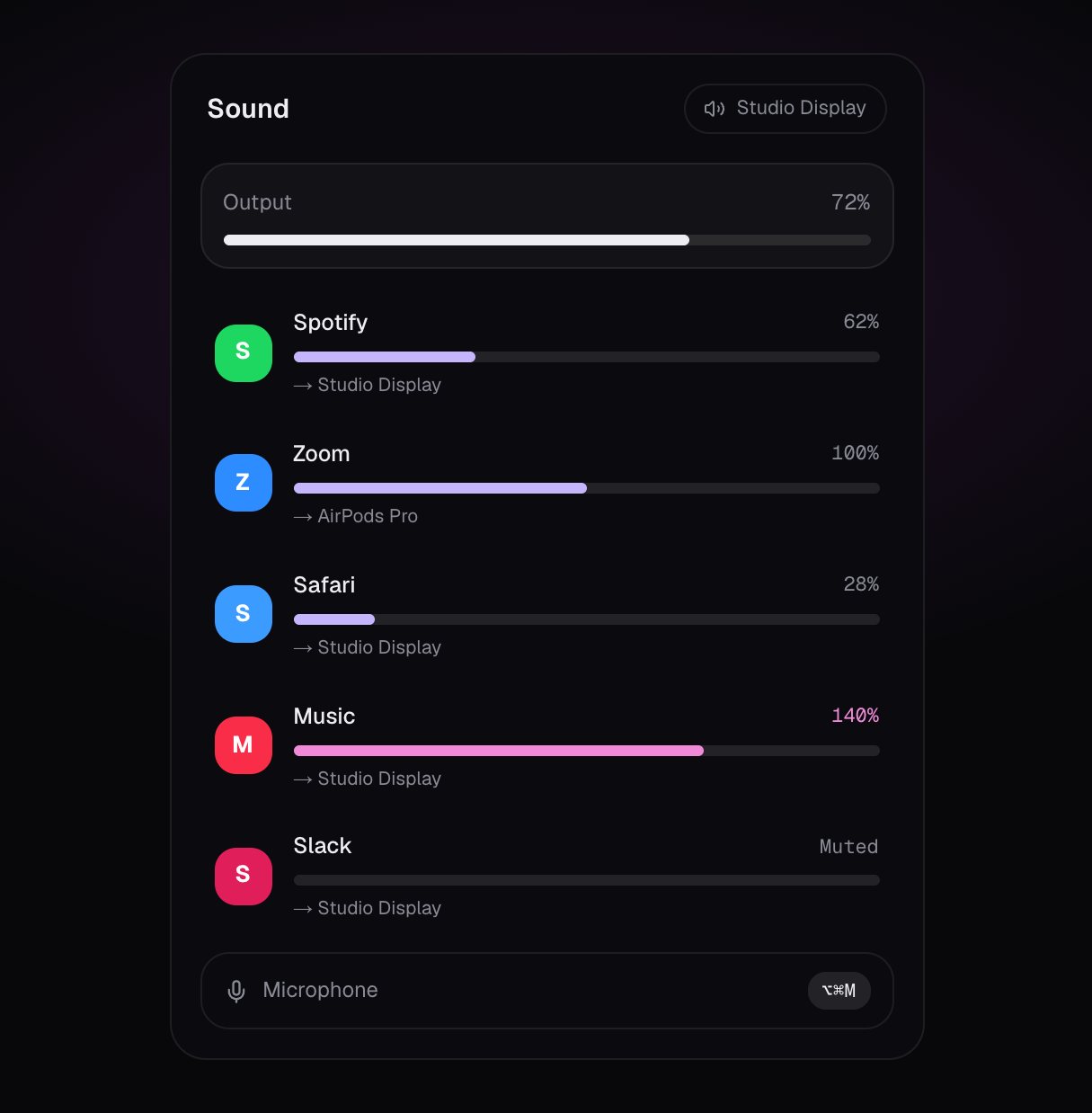
What NabuSound adds to your menu bar
- A fader per app. Every app that plays sound gets its own slider and mute. Apps you leave at 100% pass through untouched.
- Boost to 200%. Lift a quiet video or call above full volume, with a soft limiter so it gets louder without clipping.
- Per-app output. Send Spotify to the speakers and Zoom to your AirPods. If a device disappears, the app falls back to the system output.
- Ducking during calls. Music dips automatically while you are on a call and comes back when you hang up.
- One-key mic mute. Mute the microphone everywhere from a global shortcut, with a clear indicator.
- Volume keys for external displays. Make the volume keys work on HDMI and DisplayPort monitors — see why they stop working.
How to set it up in three minutes
- Install and activate. Drag NabuSound to Applications, open it and paste the license key from your receipt.
- Allow audio access. macOS asks once for permission to adjust other apps' audio. Nothing is recorded or sent anywhere.
- Mix from the menu bar. Click the speaker icon. Every app playing sound is there with its own fader and output menu.
Recipes worth stealing
| Situation | What to set |
|---|---|
| Music while you work, calls without the scramble | Turn on call ducking; leave music at 60% |
| Zoom call through AirPods, music on the speakers | Set Zoom's output to AirPods; leave the rest on the system output |
| A quiet webinar or a badly mixed video | Boost that one app to 150–200% |
| Notification sounds that make you jump | Pull the noisy app down to 20% instead of muting the whole Mac |
Frequently asked questions
Does per-app volume add latency?
Apps you leave at 100%, unmuted and on the system output are not touched at all. An app you turn down, boost or reroute passes through a tap that adds a small, fixed delay — fine for music, video and calls.
Which macOS version do I need?
macOS 14.2 Sonoma or later, on Apple silicon or Intel. Earlier versions do not have the audio taps NabuSound relies on.
Is it a subscription?
No. NabuSound is a one-time lifetime license that activates on up to three Macs, with updates included and no account required.
One slider for every sound on your computer made sense when computers played one sound at a time. They don't anymore — and with a per-app mixer in the menu bar, you never have to choose between hearing the call and hearing the music again.