

How to add a Stripe payment link to an invoice (and get paid faster)
Clients pay sooner when paying takes one click. Here are the two ways to put a Stripe link on an invoice, which one to use for client work, and the details that stop payments going astray.
3 min read
An invoice that says "pay by bank transfer to the account below" asks the client to open their banking app, copy two long numbers and type a reference correctly. An invoice with a Pay now button asks them to click it. Unsurprisingly, the second gets paid sooner.
If you already use Stripe, putting a payment link on every invoice is one of the cheapest improvements you can make to your cash flow. There are two ways to do it, and they suit different kinds of work.
Option 1: Stripe Payment Links
A Payment Link is a Stripe-hosted checkout page you create in the dashboard without code. You set a product and price, Stripe gives you a URL, and anyone with the link can pay.
According to Stripe's own comparison, Payment Links are reusable: many customers can pay through the same link, and you can limit the number of purchases. They also support subscriptions, letting customers choose what to pay, and editing quantities.
Good for: fixed packages you sell often, such as a setup fee, an hour of support, or a monthly maintenance plan.
Not ideal for: one-off client invoices. A reusable link is not tied to a specific invoice, so matching the payment back to the right invoice is on you. Stripe's comparison describes Payment Links reconciliation as "simple reconciliation by using URL parameters", while Invoicing gets automatic reconciliation.
Option 2: Stripe Invoicing
Stripe Invoicing creates an invoice for a specific customer, with its own hosted payment page and link. Stripe's comparison notes that invoices can't be reused (you duplicate them instead), that they support partial payments and payment plans, that a quote can be converted to an invoice, and that automatic collection features such as reminder emails are available.
Good for: client work, where every invoice is different and you want each payment matched to its invoice automatically.
Which to use for client work
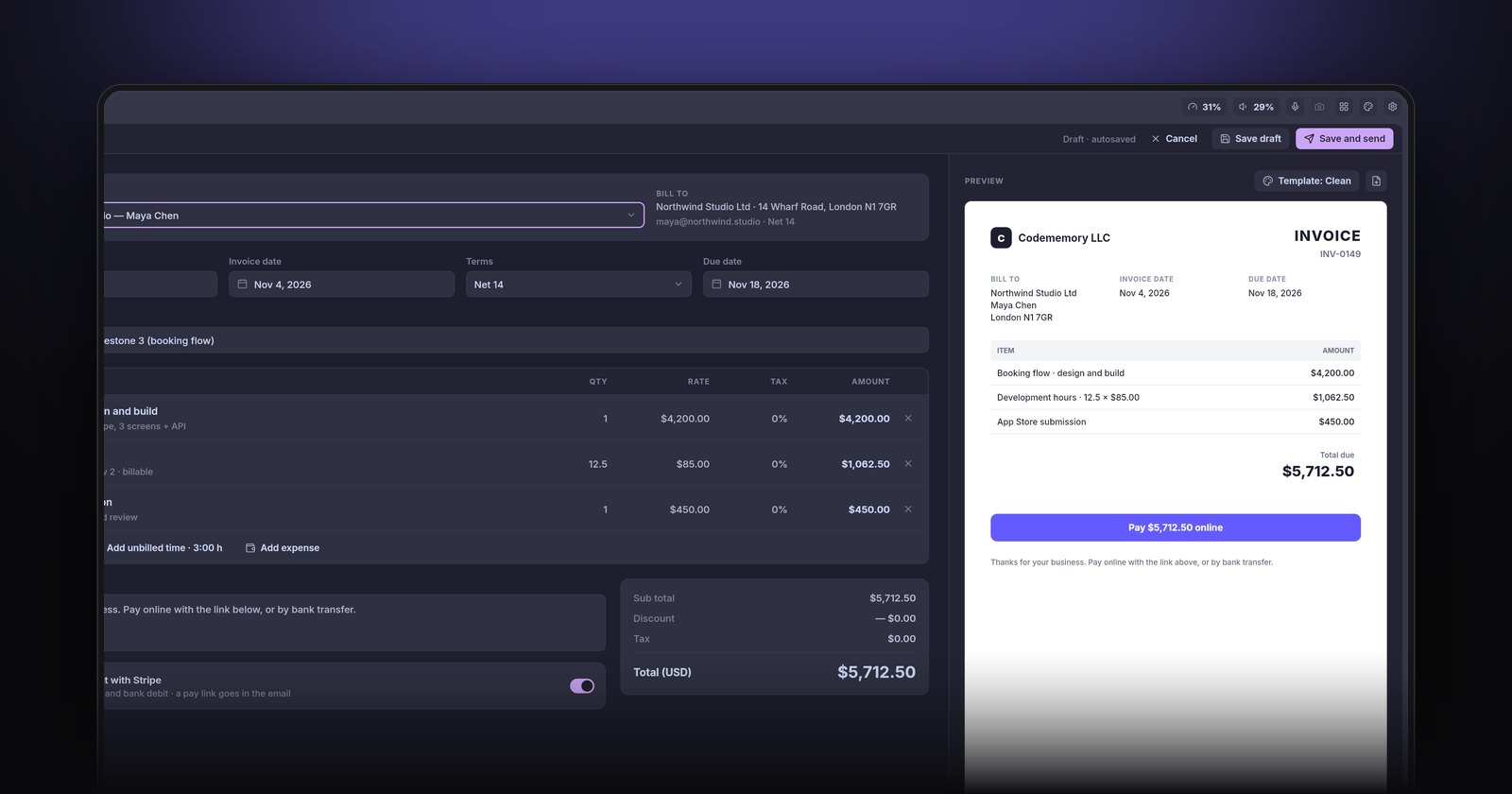
For most freelance and agency-style work, use one link per invoice. Either create the invoice in Stripe Invoicing, or create it in your own invoicing tool and generate a Stripe link for that exact amount and reference. Either way, the rule is the same: one invoice, one link, one payment.
Keep reusable Payment Links for products and packages.
What to put on the invoice itself
The link is not a replacement for a proper invoice. Make sure the document still has:
- Your business name and contact details, and the client's.
- A unique invoice number and the issue date.
- A clear due date ("Due 14 days from issue" is fine, but a real date is better).
- Line items with quantities and rates, including any billable expenses.
- Tax, if you charge it, shown separately.
- The Pay now link near the total, plus bank details as a fallback for clients whose finance teams insist on transfers.
Small details that prevent payment mix-ups
- Put the invoice number in the payment description so it appears on the client's statement and on yours.
- Use the client's currency where you can. Paying in their own currency removes a reason to delay.
- Turn on receipts so the client gets proof of payment without asking.
- Mark the invoice paid as soon as Stripe confirms it, so you never chase a client who has already paid. That one is embarrassing.
Fees, briefly
Card payments carry processing fees, and they vary by country, card type and currency. Check Stripe's pricing page for your account rather than relying on a number in a blog post. Many freelancers simply build fees into their rates rather than adding a surcharge line, which can be restricted in some places.
Doing it without copy and paste
The manual version works: create the invoice, create a matching Stripe link, paste it into the invoice, then mark the invoice paid when the money lands. The friction is in the copying and the remembering.
In NabuOne, each invoice carries a Stripe pay link for its own amount, and the money goes straight to your own Stripe account. You can turn a quote into the invoice, add the hours you tracked and the billable expenses, and when the client pays, the invoice and the client's record update themselves.
The short version
Use one Stripe link per invoice for client work, and reusable Payment Links for packages. Keep the invoice complete, put the invoice number in the payment description, and mark invoices paid the moment money arrives. Then, if a payment is still late, use these templates for chasing a late invoice.